
Google Tag Manager Integration
You can use Google Tag Manager to add SEOJuice integration code to your website.
Steps to Integrate
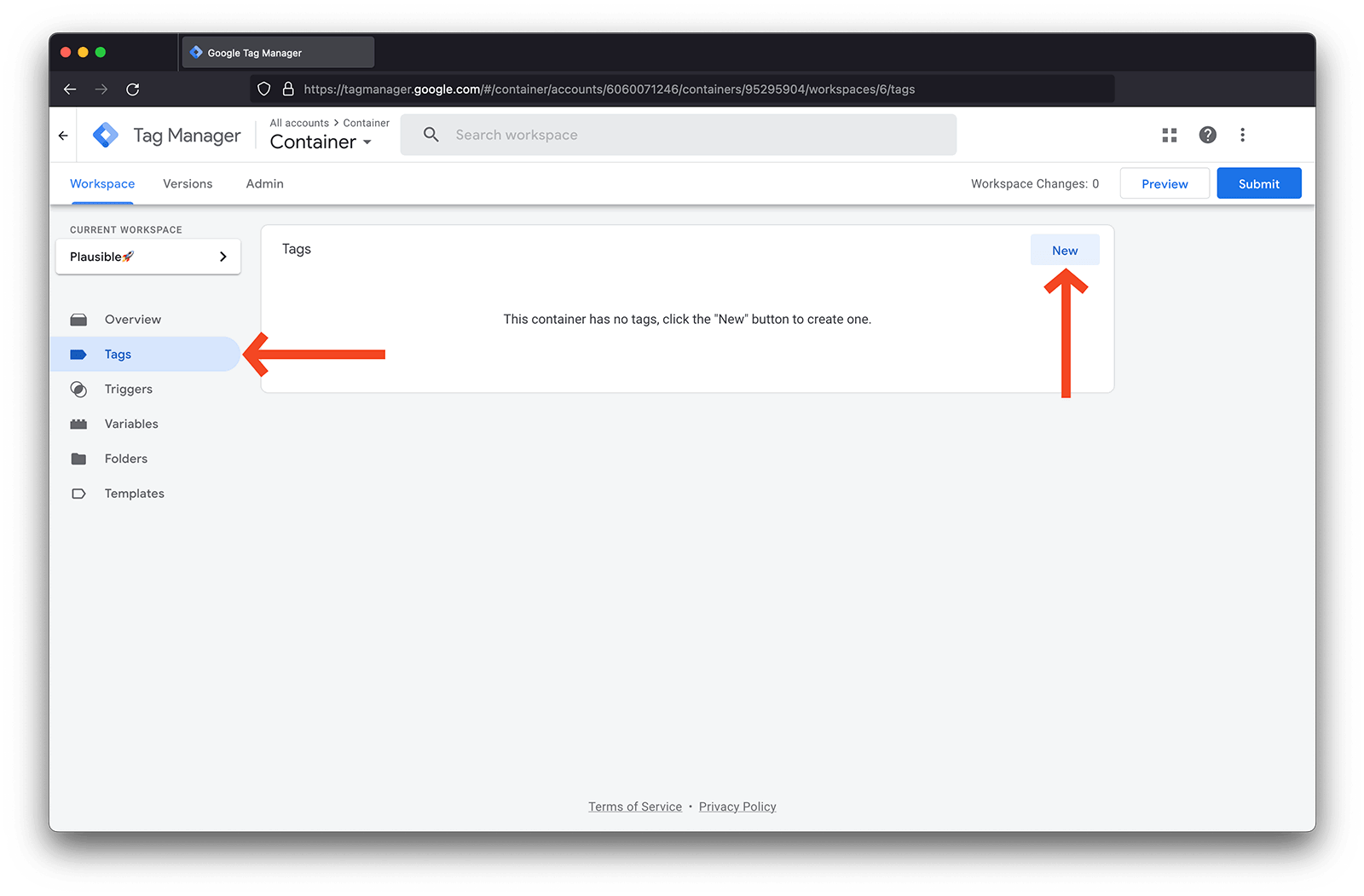
- Add a new tag in your Google Tag Manager account
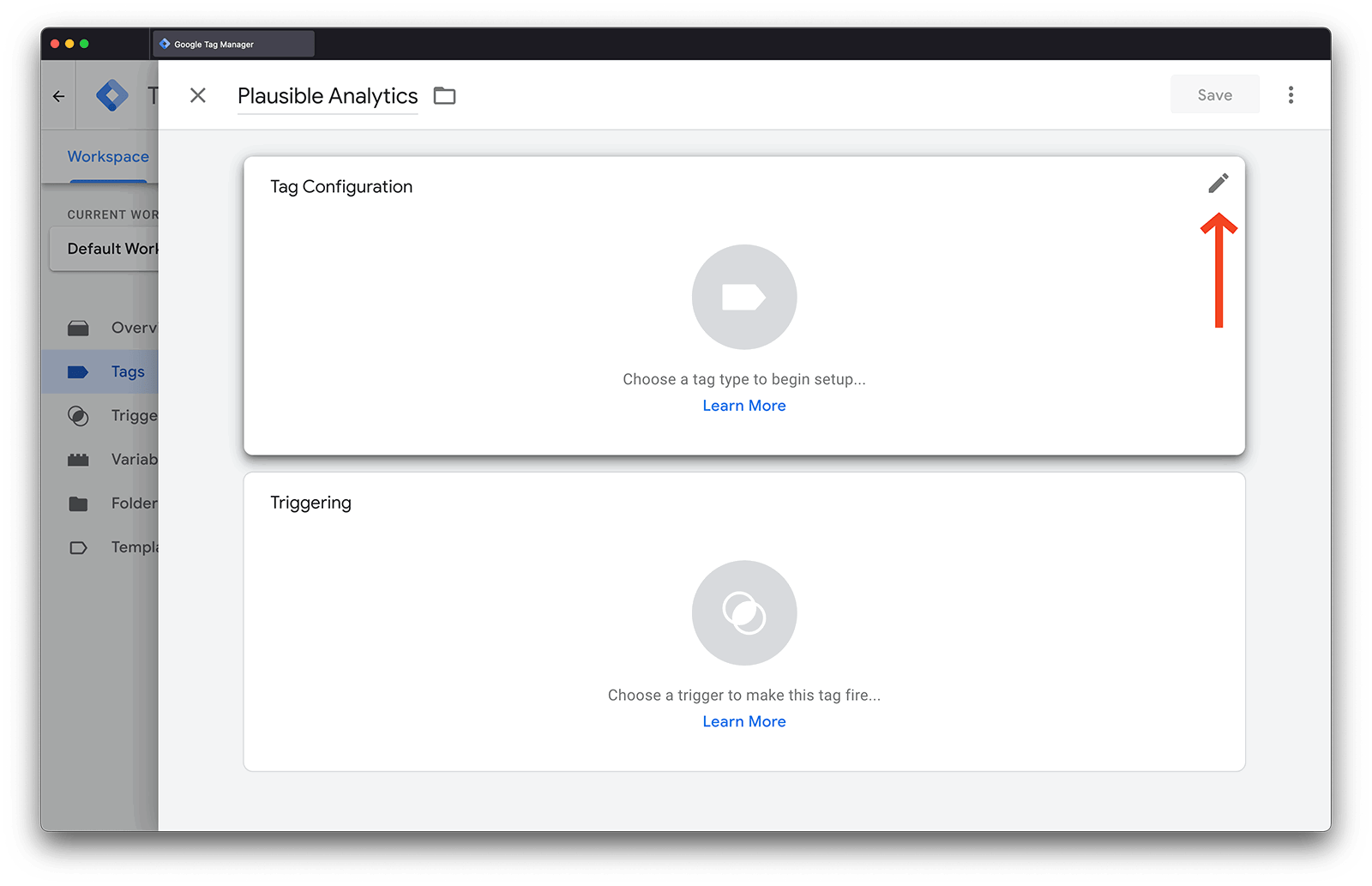
- Choose a tag type by clicking “Choose a tag type to begin setup”
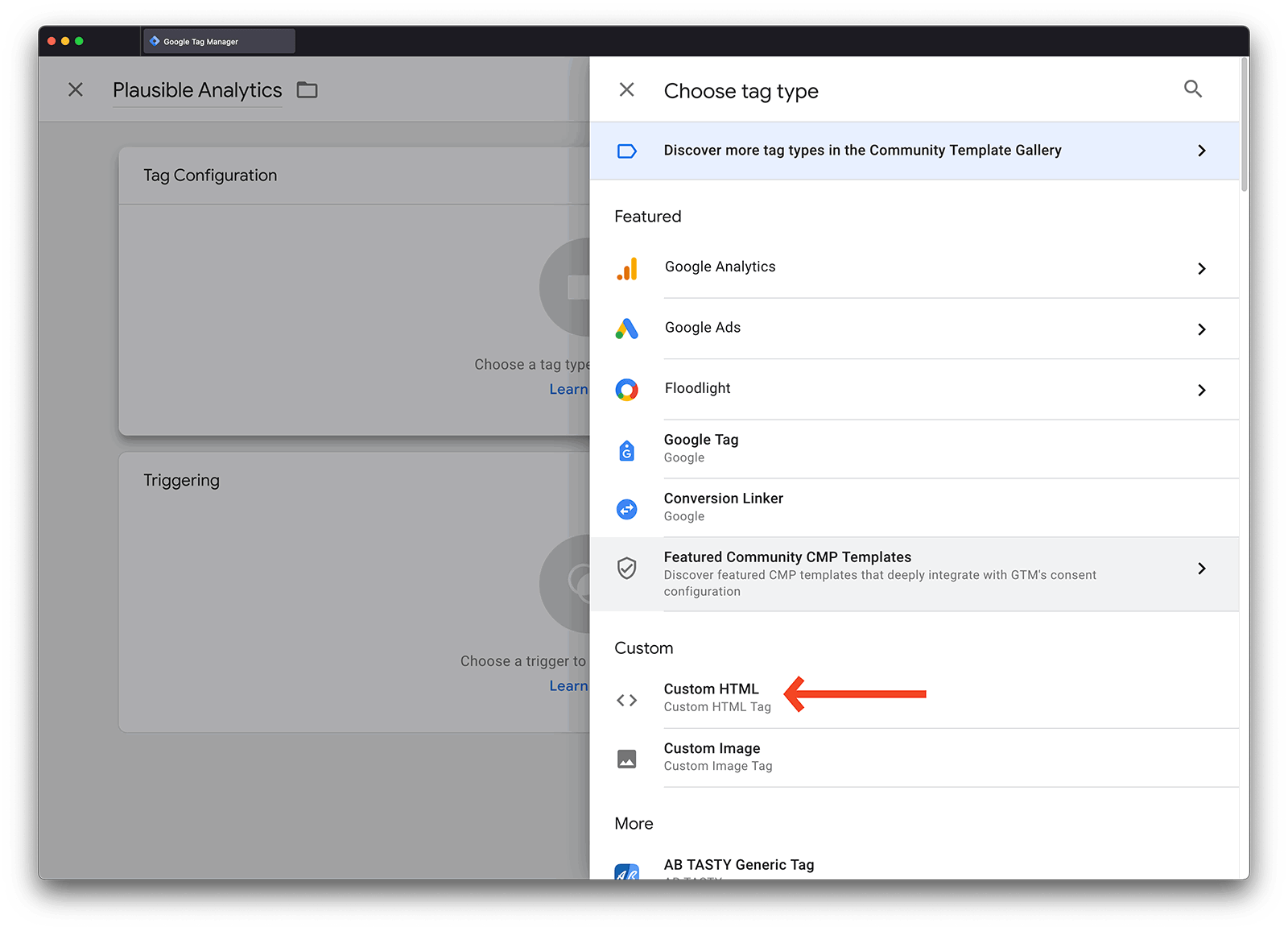
- Search for Custom HTML using the search functionality
- Paste the integration code into the HTML field:
<script type="text/javascript" src="https://cdn.seojuice.io/suggestions.v1.js" defer></script><noscript><img src="https://smart.seojuice.io/pixel" width="1" height="1" alt="" style="display:none"></noscript>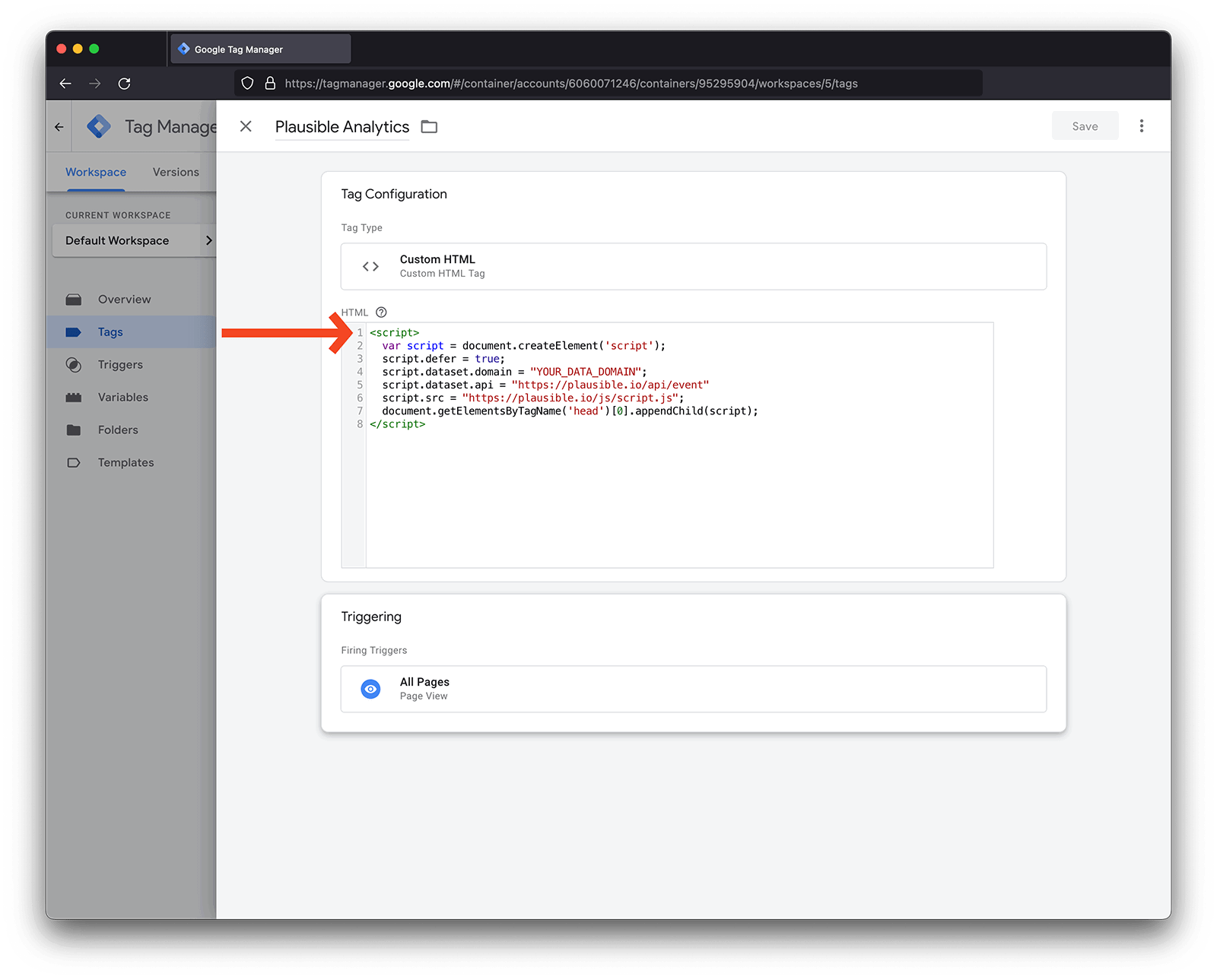
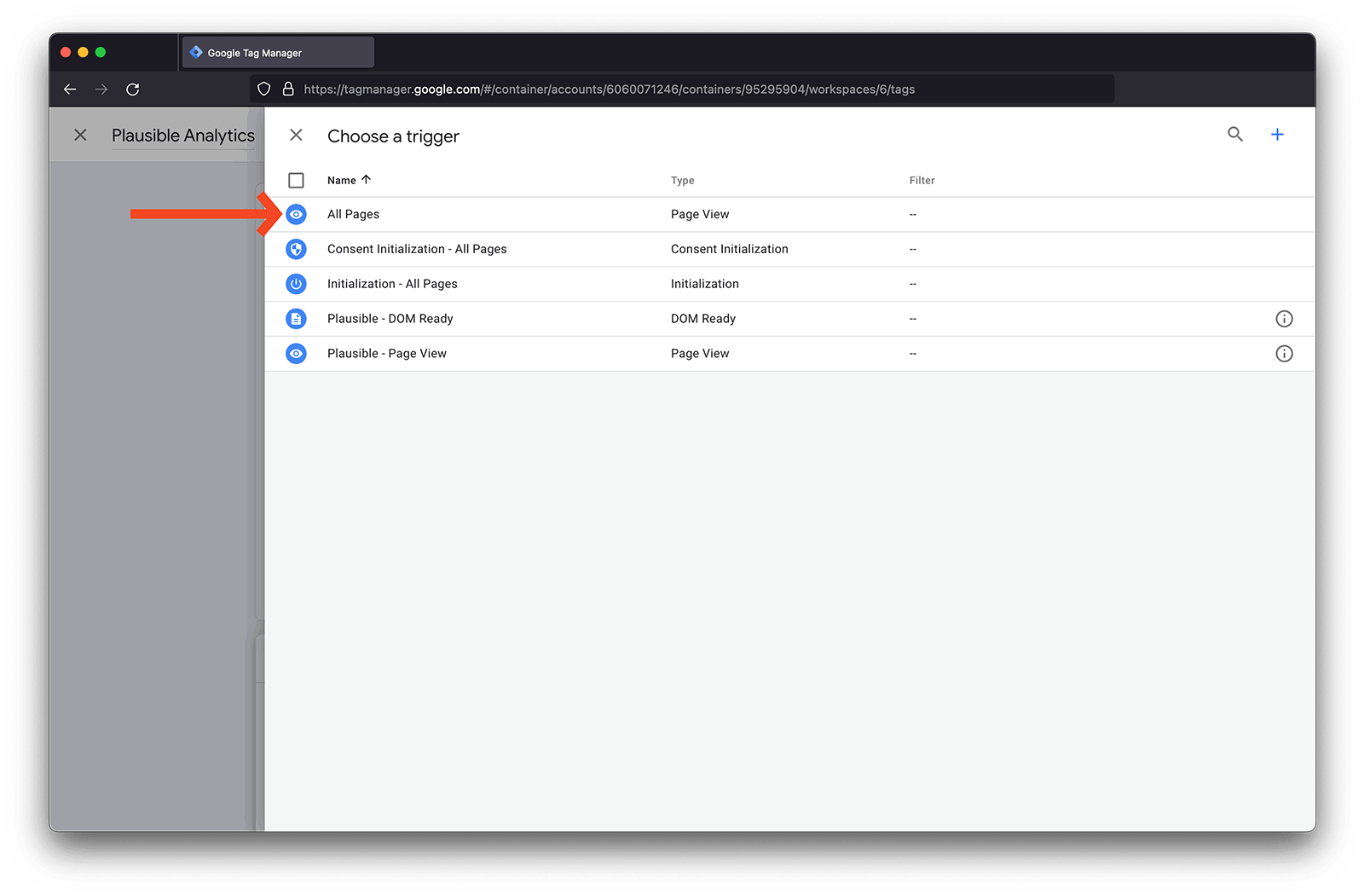
- Set up the trigger by clicking “Choose a trigger to make this tag fire”
- Select trigger settings: Choose “All Pages” with “Page View” filter to count all your pages
- Name your tag for easy identification
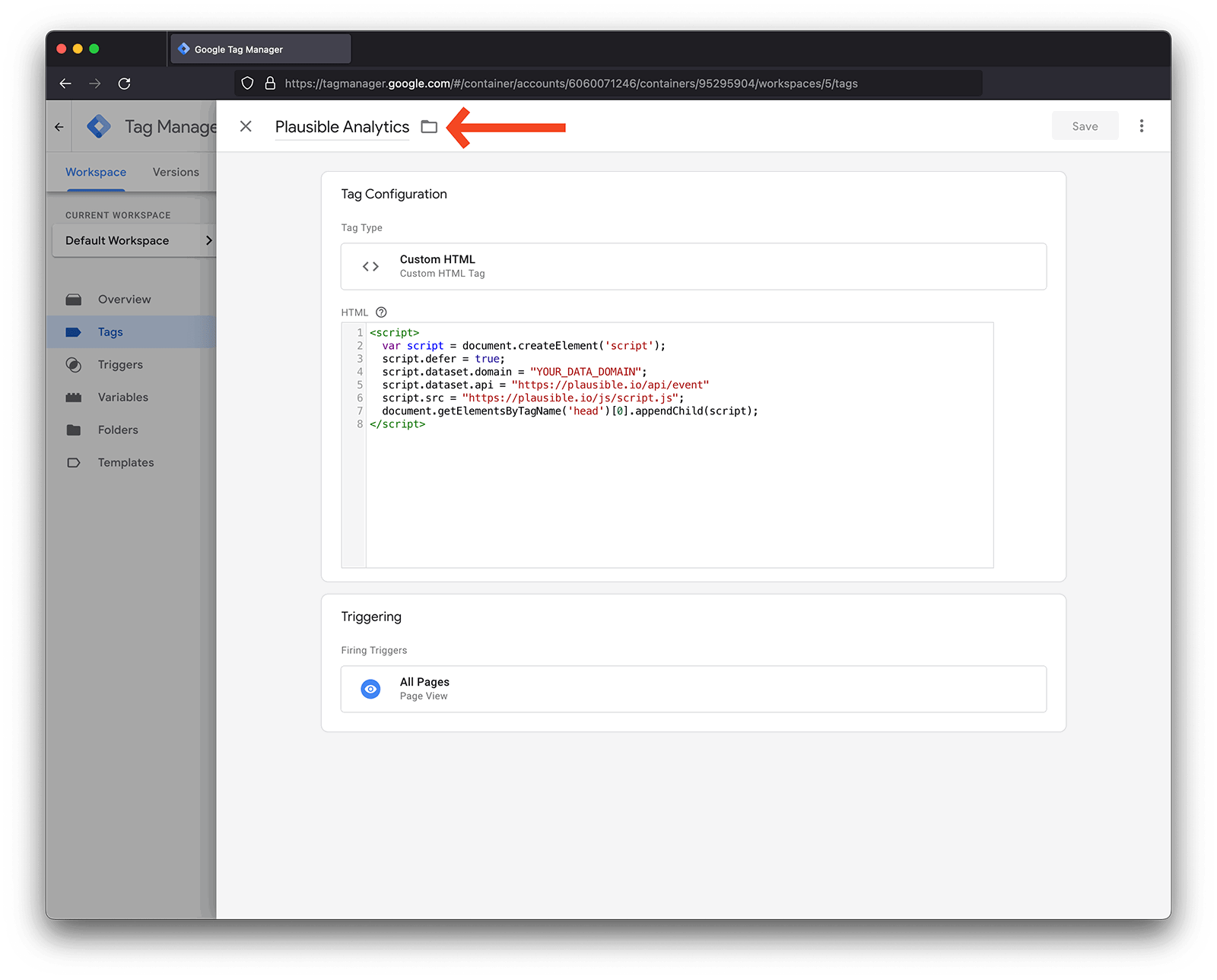
- Save the tag configuration
- Submit your changes
- Publish to activate the integration
This approach allows you to deploy SEOJuice across your website through Google Tag Manager’s centralized tag management system.