
White-Label Feature For Agencies
Step 1: Register Your Agency
- Visit the SEOJuice Website: Head to the SEOJuice homepage and navigate to the registration page.
- Sign Up: Fill out the form with your agency’s details, or use your Google Account.
- Verify Your Email: Check your inbox for a confirmation email and verify your account.
Once registered, you’ll have access to the SEOJuice dashboard, where you can explore the full range of white-label features.
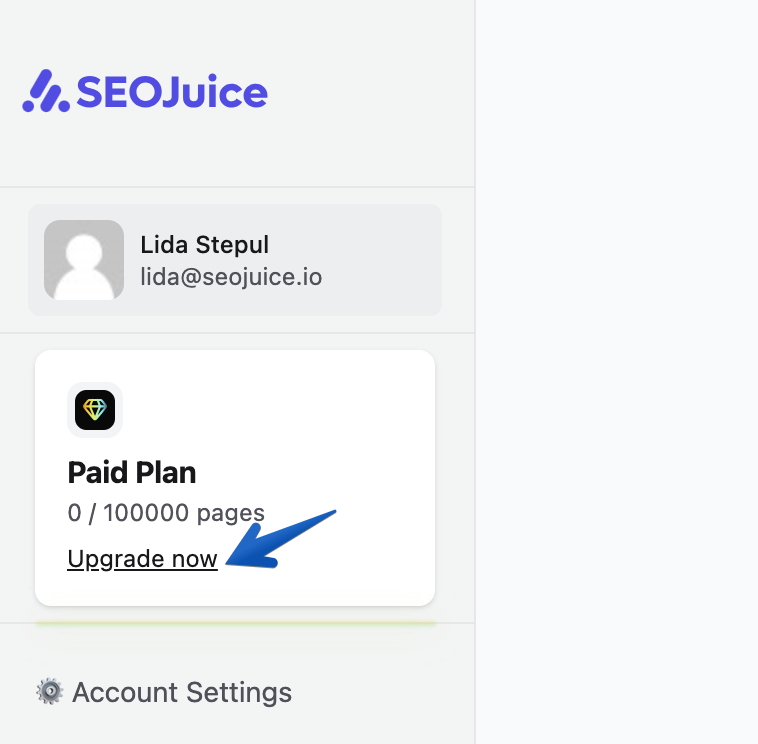
Step 2: Upgrade to Support Up to 20,000 Pages
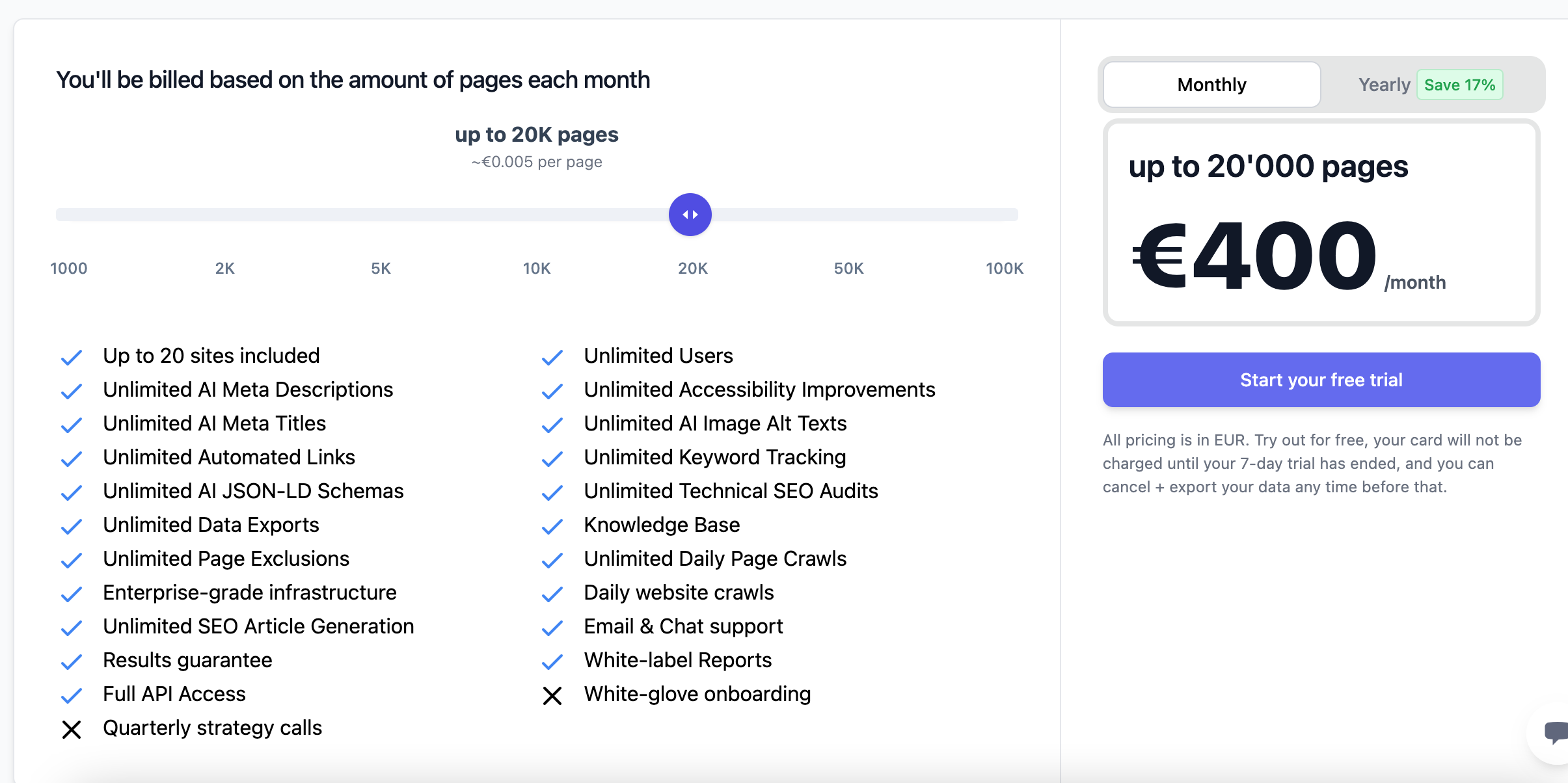
To fully unlock the potential of SEOJuice’s white-label service, upgrade your account to handle campaigns for websites with up to 20,000 pages.
- Navigate to the Upgrade Section: Log in to your dashboard and locate the “Upgrade Now” section.
- Choose the 20,000-Page Plan: Select the appropriate plan that supports campaigns of this scale.
- Confirm Payment: Confirm the upgrade. You’ll receive an invoice and a notification of your upgraded status.
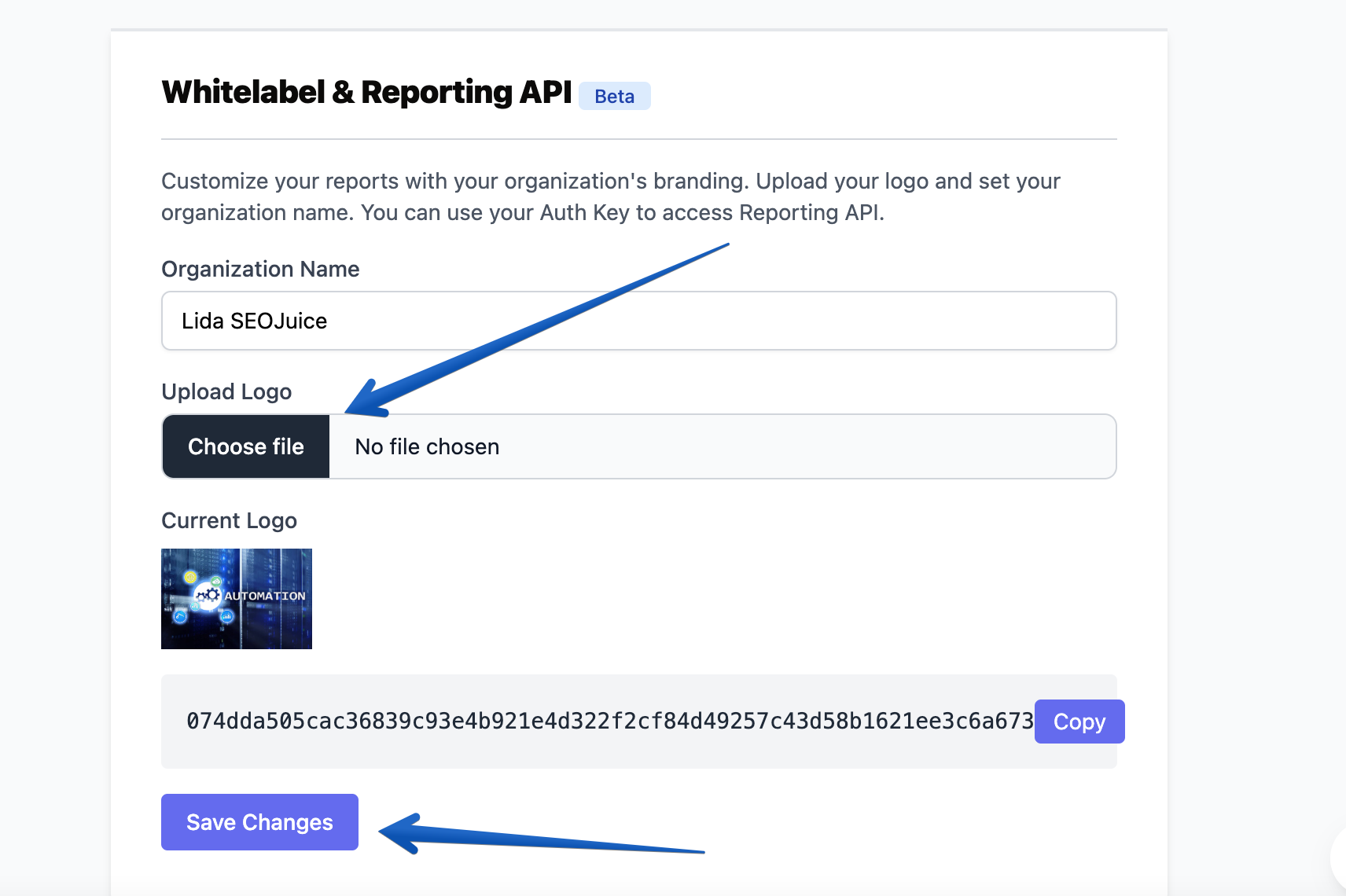
Step 3: Set Up Branding and Reports
To make the service truly white-label, customize the platform to reflect your agency’s brand:
- In your dashboard, go to Account Settings.
- Scroll down to Whitelabel & Reporting API.
- Upload your agency’s logo.
- Save changes.
Common Questions
Will my clients know I’m outsourcing?
No. All deliverables and communications are branded with your agency’s identity, ensuring your clients only see your agency’s name.
What industries do you work with?
The platform has experience across various sectors, from e-commerce and local businesses to enterprise clients, ensuring we can adapt to any niche.
Custom Domain for JS Snippet
SEOJuice offers the option to integrate a custom domain for JavaScript snippets, ensuring that all client-facing tools and tracking codes align with your branding.