
Schedule and Share Reports
By the end of this guide, you’ll know how to generate and share SEO reports that show your progress.
Prerequisites: Review crawler analytics to have your monitoring data in place.
Why reports matter
SEO work is ongoing, and stakeholders need to see results. SEOJuice generates reports that summarize what was optimized, how much time was saved, and the value delivered — making it easy to communicate progress to clients or your team.
Step 1: Open the reports page
Navigate to Measure > Reports from the sidebar. You’ll see an overview of your optimization activity.
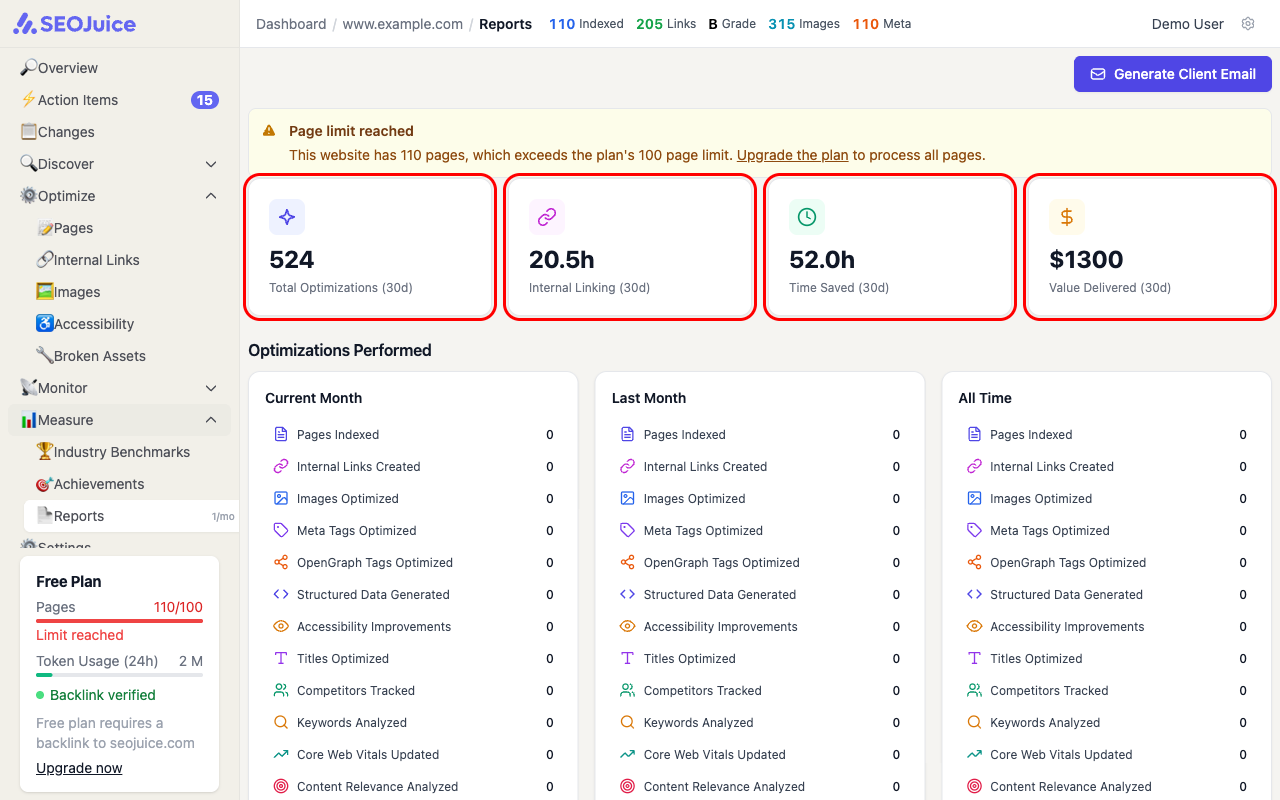
The top KPI cards summarize your 30-day activity:
- Total Optimizations — all automated changes applied
- Internal Linking — hours saved on link building
- Time Saved — total manual work hours automated
- Value Delivered — estimated dollar value of the work SEOJuice performed
Below, the Optimizations Performed section breaks down activity by type across three time windows: Current Month, Last Month, and All Time.
Step 2: Generate a report
Use the Generate New Report form to create a report for any date range. Quick options include:
- This Month — current month’s activity
- Last Month — previous month’s summary
- All Time — full history since you started using SEOJuice
You can also set custom start and end dates for specific reporting periods.
Report generation takes 2-5 minutes. You can leave the page and come back later — the report will be waiting.
Step 3: Share with clients or your team
Use the Generate Client Email button to create a formatted email summary of your SEO activity. This is designed for agencies and freelancers who need to report to clients regularly.
The email includes:
- Key metrics and improvements
- Optimization counts by category
- Time and value estimates
What to expect
Reports are available on all plans, with frequency limits depending on your subscription level. Report generation pulls data from your optimization history, so reports are most useful after SEOJuice has been running for at least a few weeks.
Next step: Set up webhooks to receive real-time notifications about important changes.