
Work Through Your Action Items
By the end of this guide, you’ll know how to find, prioritize, and resolve SEO action items.
Prerequisites: Read your SEO report to understand where your site stands.
Step 1: Open action items
From the sidebar, click Action Items. You’ll see every issue SEOJuice has detected, sorted by impact.
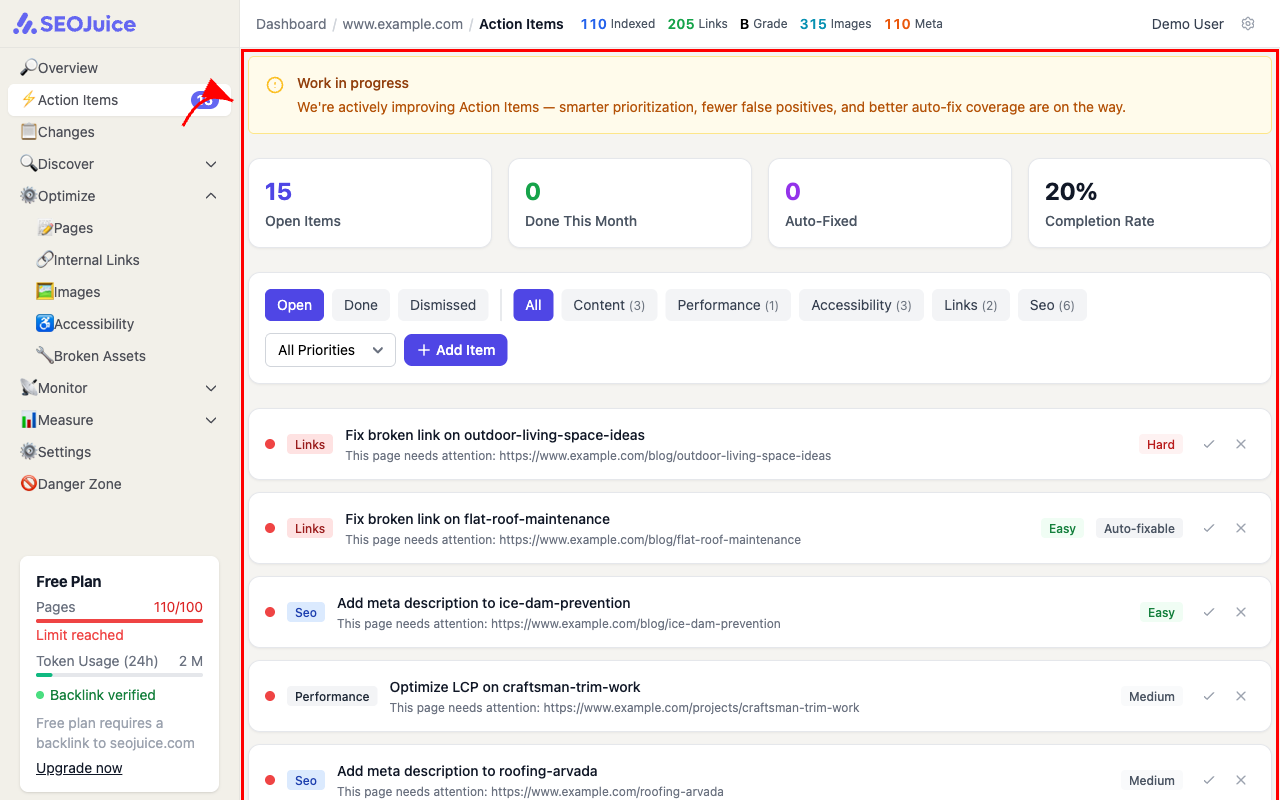
Each item shows:
- Type — what kind of issue it is (missing meta, thin content, broken link, etc.)
- Priority — how much fixing it will improve your SEO
- Affected pages — which pages have this issue
- Suggested fix — what SEOJuice recommends
Step 2: Resolve items
Click any item to expand its details. Some items have one-click fixes — SEOJuice can apply the change automatically. Others require manual changes on your site, and the description tells you exactly what to do.
After fixing an issue, SEOJuice detects the change on the next crawl and marks it as resolved.
What to expect
New action items appear after each re-crawl as SEOJuice discovers new issues or detects changes. Focus on high-priority items first — they produce the fastest score improvements. Your SEO report tracks your resolution rate over time.
Next step: Apply on-page optimizations to let SEOJuice handle meta tags, schema, and more.