Understand Your First Crawl
By the end of this guide, you’ll know how to interpret every section of your SEOJuice overview dashboard.
Prerequisites: Add your website and wait for the initial crawl to complete.
The overview dashboard
After your crawl finishes, the overview page shows four KPI cards at the top:
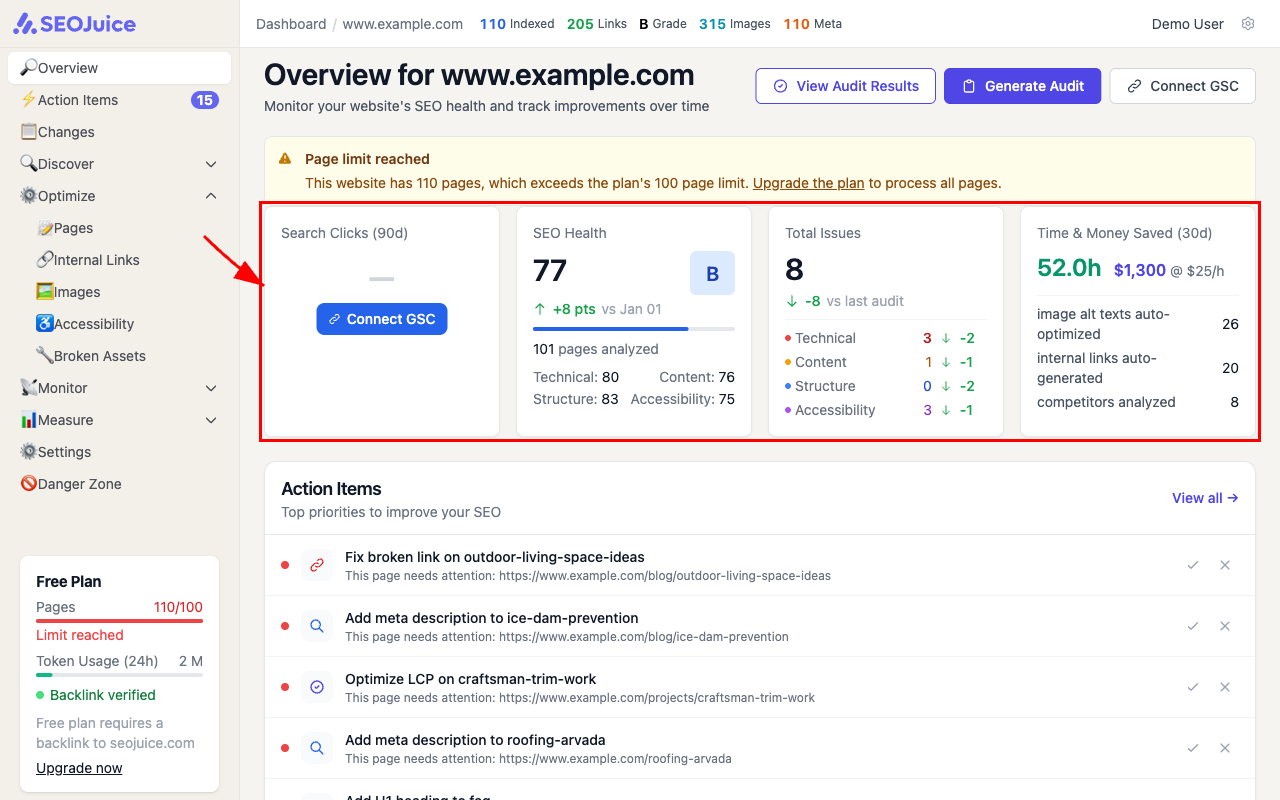
Here’s what each card tells you:
- Search Clicks (90d) — total clicks from Google Search in the last 90 days. Requires Google Search Console to be connected.
- SEO Health — your site’s overall score (0–100) with a letter grade. Broken down into Technical, Content, Structure, and Accessibility sub-scores.
- Total Issues — count of problems found, categorized by type. The trend shows improvement since your last audit.
- Time & Money Saved — estimates how much manual work SEOJuice has automated for you in the last 30 days.
Action items: what to fix first
Below the KPI cards, the Action Items section lists the highest-impact issues to address, ranked by severity:
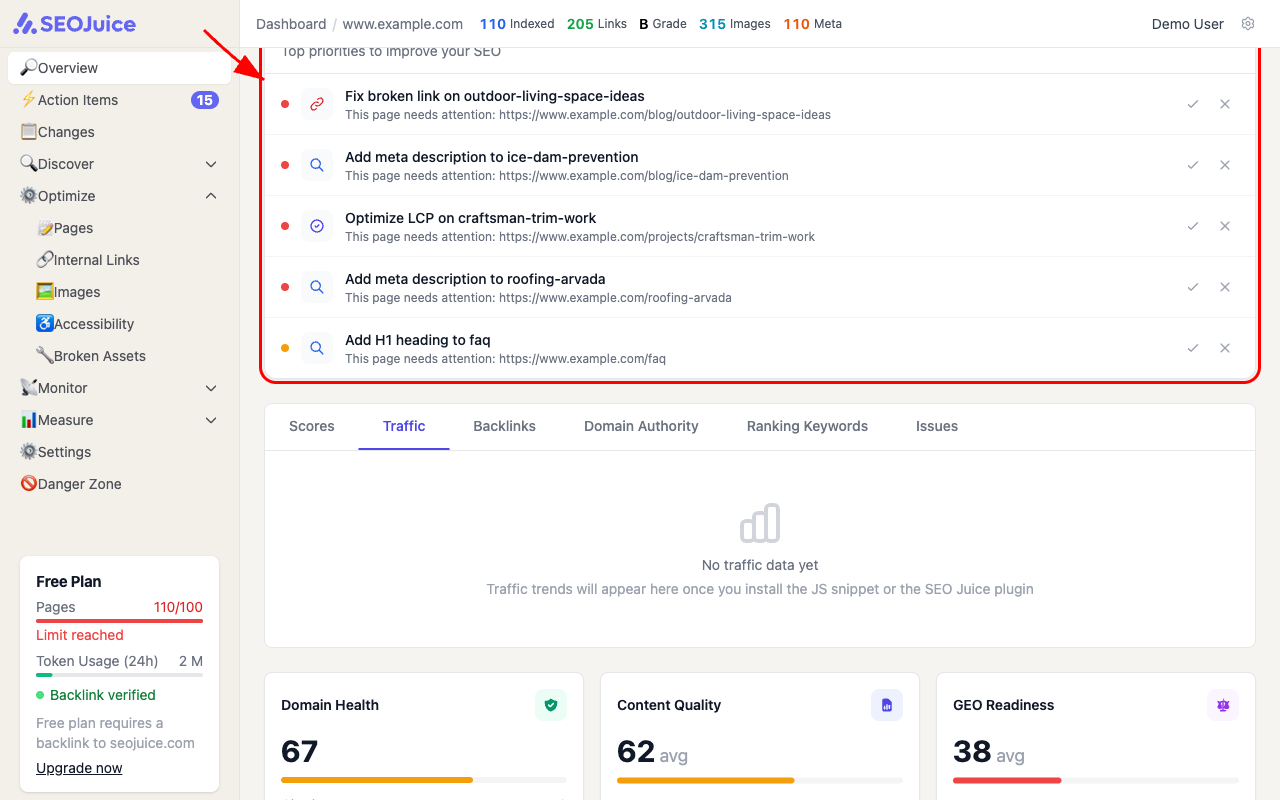
Each item tells you:
- What to fix — a specific, actionable task (e.g., “Add meta description to ice-dam-prevention”)
- Which page — the exact URL that needs attention
- Quick actions — mark as done (checkmark) or dismiss (X) once you’ve handled it
What else the dashboard shows
Scroll down to find more insights:
- Score trends — charts tracking your SEO health, traffic, backlinks, and keyword rankings over time
- Domain Health / Content Quality / GEO Readiness — three specialized score cards with detailed breakdowns
- Technical Health Check — indexing rates, Core Web Vitals, SSL/sitemap/robots.txt status
- Achievements — gamified milestones to track your SEO progress
What to expect over time
Your first crawl gives you a baseline. As you fix issues and SEOJuice auto-applies optimizations, you’ll see your health score climb. Re-crawls happen automatically, so your dashboard always reflects the current state of your site.
Next step: Invite your team so everyone can collaborate on SEO improvements.