
Connect Google Search Console
By the end of this guide, SEOJuice will pull real keyword and traffic data from Google Search Console into your dashboard.
Prerequisites: Add your website and verify ownership in Google Search Console.
Step 1: Open Search Console settings
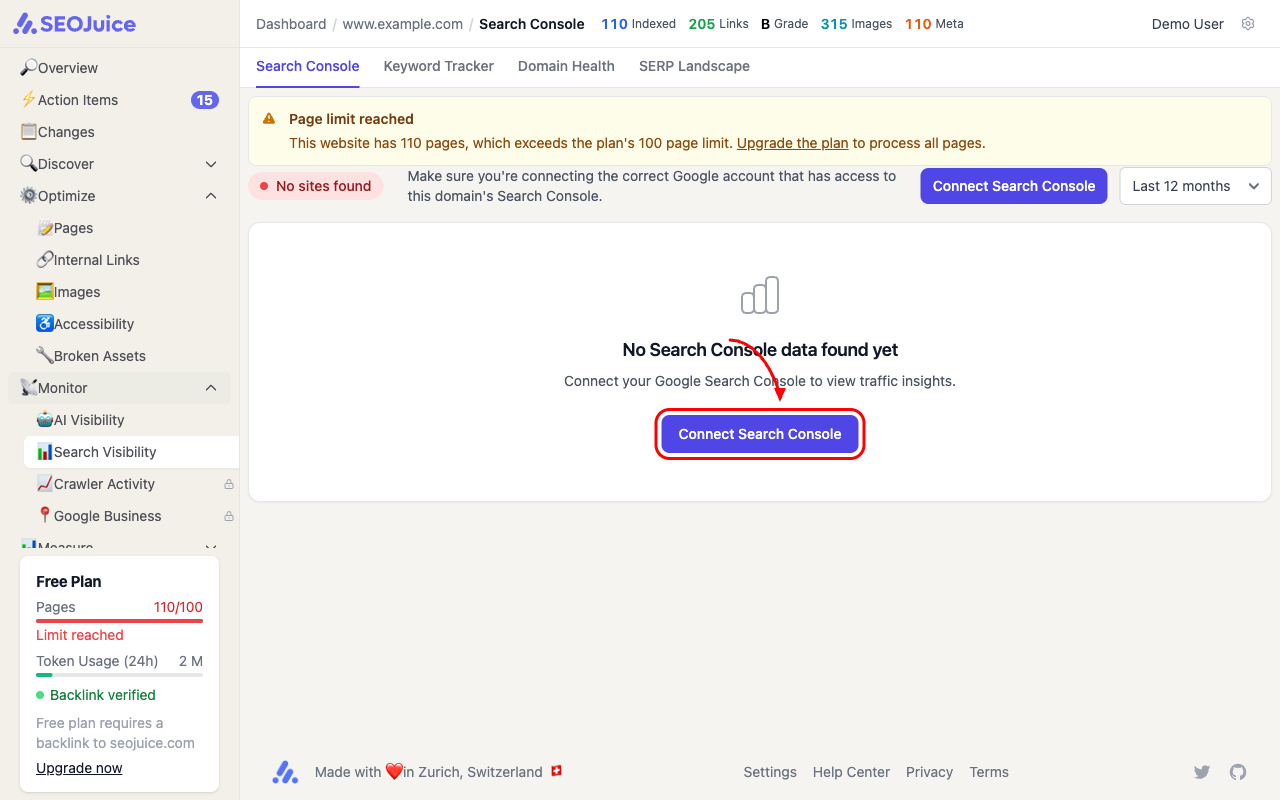
From your website dashboard, click Search Console in the top navigation (under the Monitor section in the sidebar, labeled “Search Visibility”). You’ll see a prompt to connect your Google account.
Step 2: Authorize Google access
Click Connect Search Console. You’ll be redirected to Google’s OAuth screen. Sign in with the Google account that has access to your site’s Search Console property, and grant SEOJuice read-only access.
Step 3: Select your property
After authorizing, you’ll be taken back to SEOJuice. If your Google account has access to multiple Search Console properties, select the one that matches your website’s domain.
What to expect
Once connected, SEOJuice imports your search performance data — keywords, clicks, impressions, average position, and CTR. This data powers:
- Keyword tracking — see which queries drive traffic to each page
- Content decay detection — spot pages losing rankings before it’s too late
- Priority scoring — pages with real traffic data get more accurate priority scores
- SERP landscape — understand your competitive position for key terms
Initial data import takes a few minutes. Historical data (up to 16 months) loads in the background.
Next step: Understand your first crawl to make sense of the data SEOJuice found.