
WordPress Integration
Install via Plugin “SEOJuice” (Recommended)
The official plugin is the easiest and most powerful way to integrate. It includes server-side rendering (SSR) and auto-publish support.
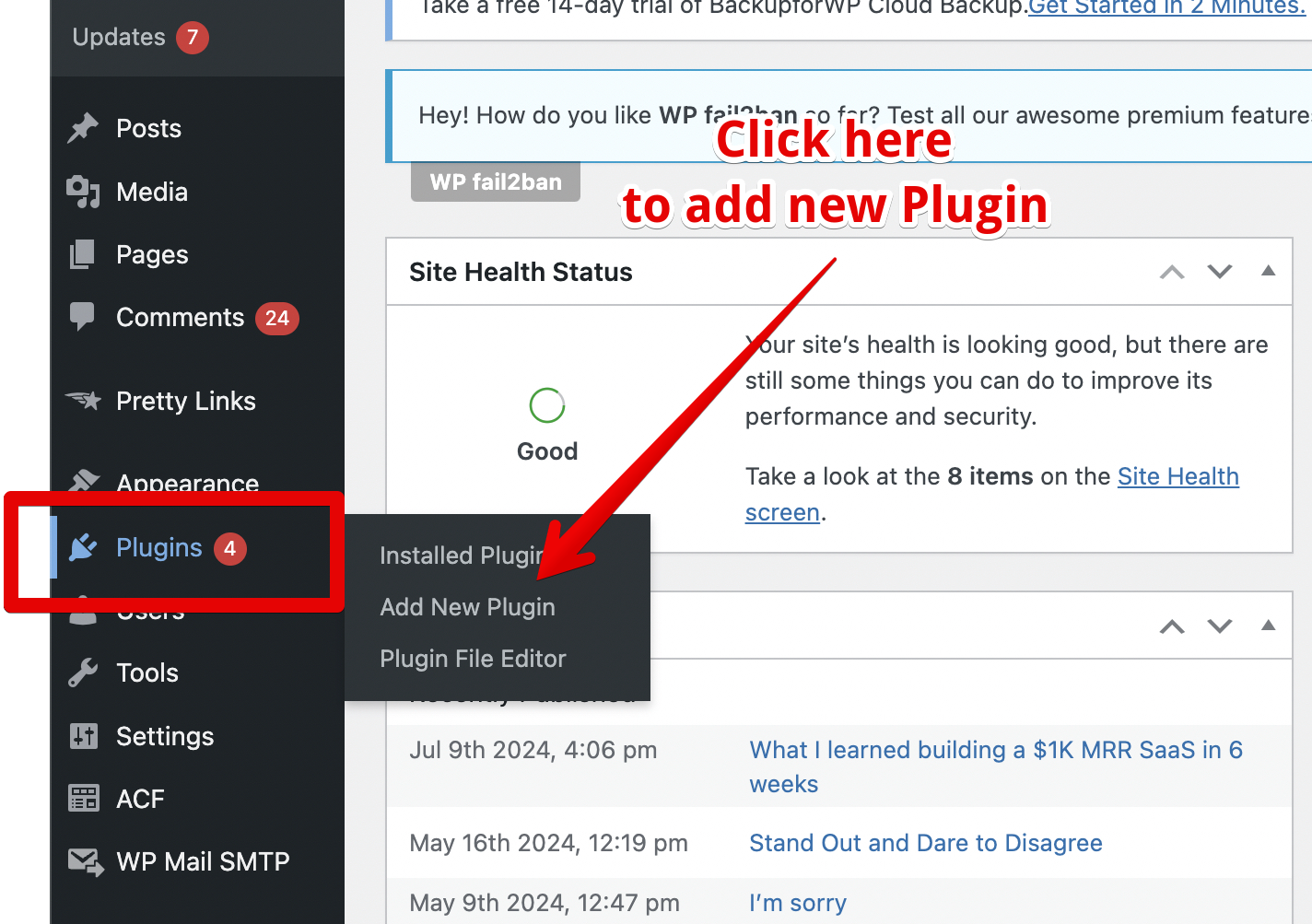
Step 1: Go to Plugins and click on Add New Plugin
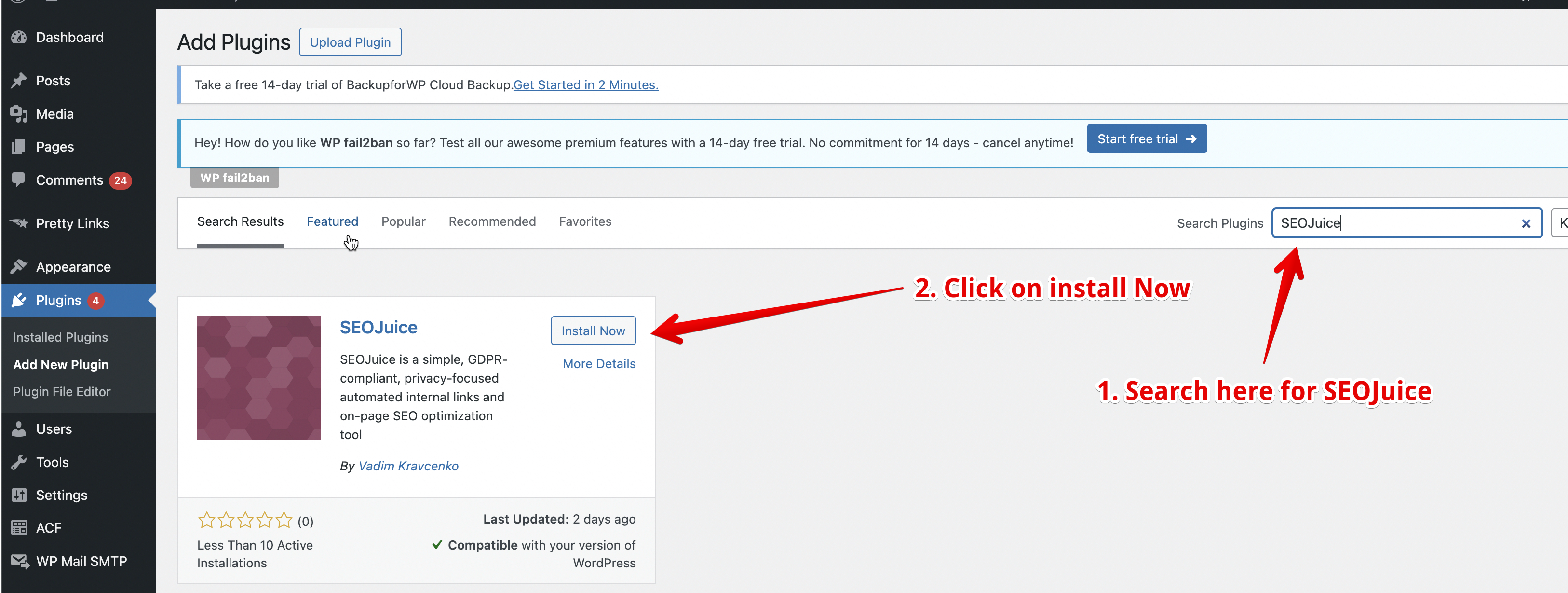
Step 2: Search for “SEOJuice” in WordPress, and click on Install Now
Step 3: Activate the plugin
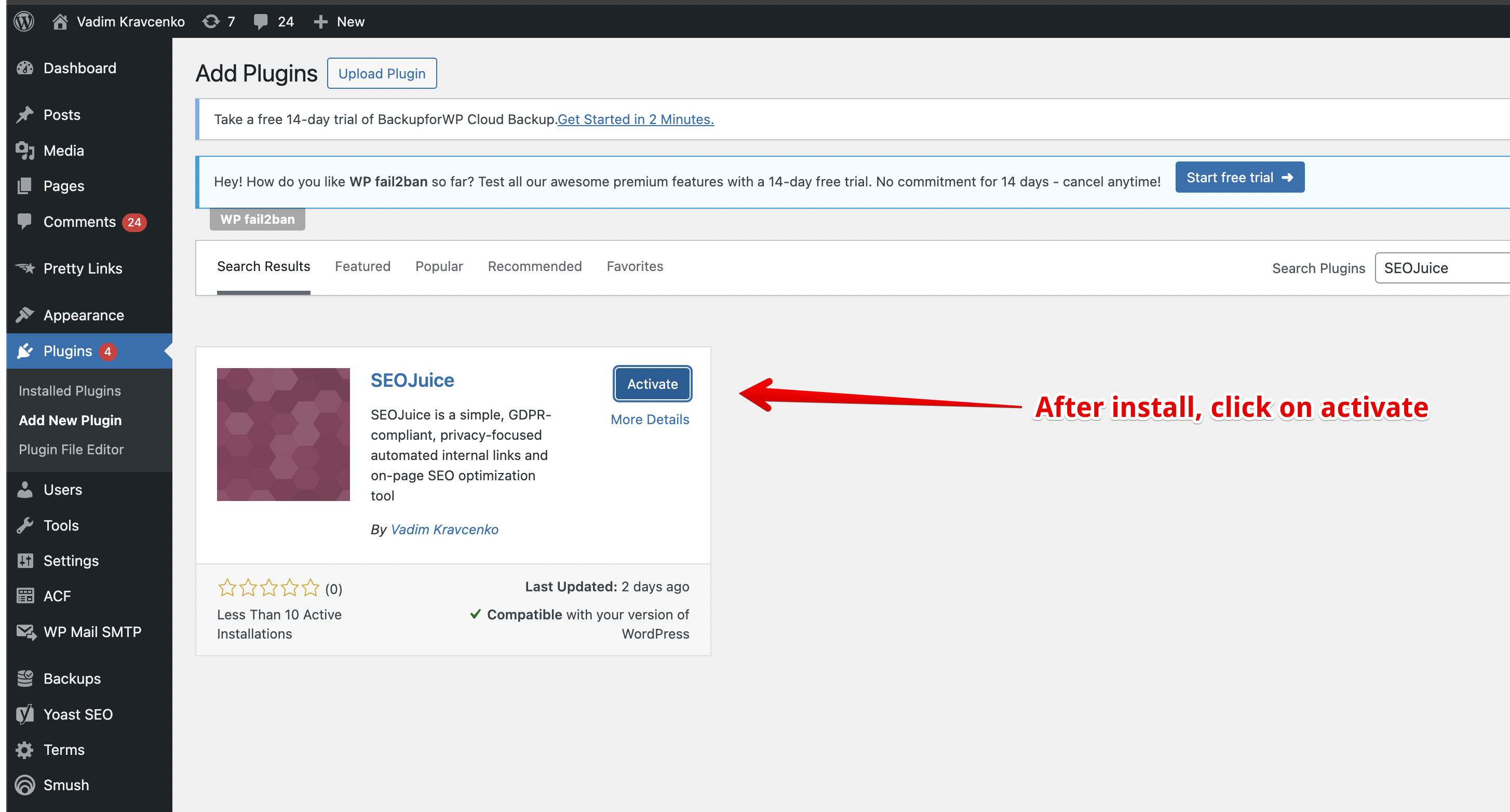
You’re done! Please wait for your site to finish processing. Make sure you add your website in the SEOJuice dashboard before activating the plugin.
Alternative: Manual Script Installation
Use this method only if you cannot install the plugin (e.g., restricted hosting). The plugin is always preferred.
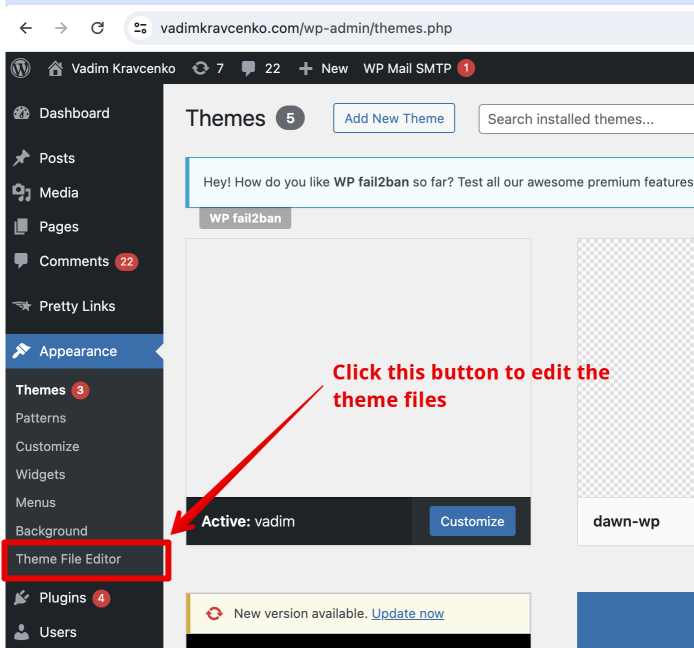
Step 1: Go to your WordPress Admin Panel and click Appearance
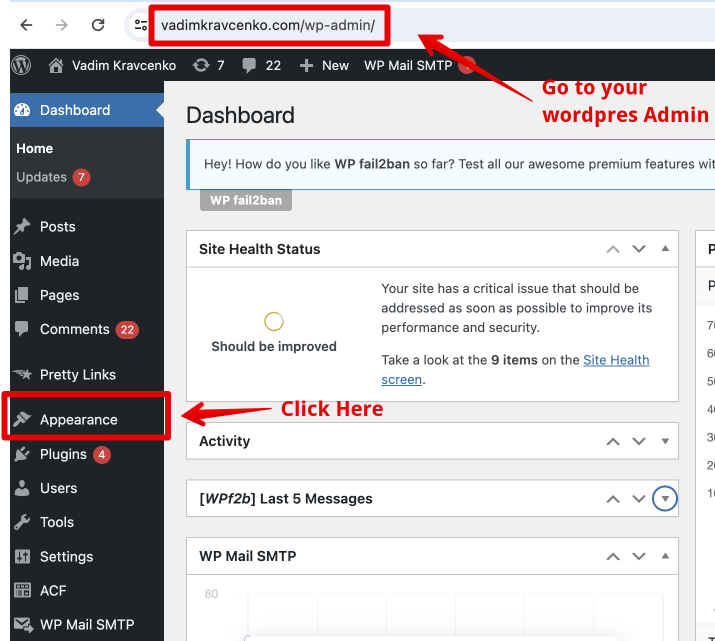
Step 2: Go to your Themes and select Theme File Editor
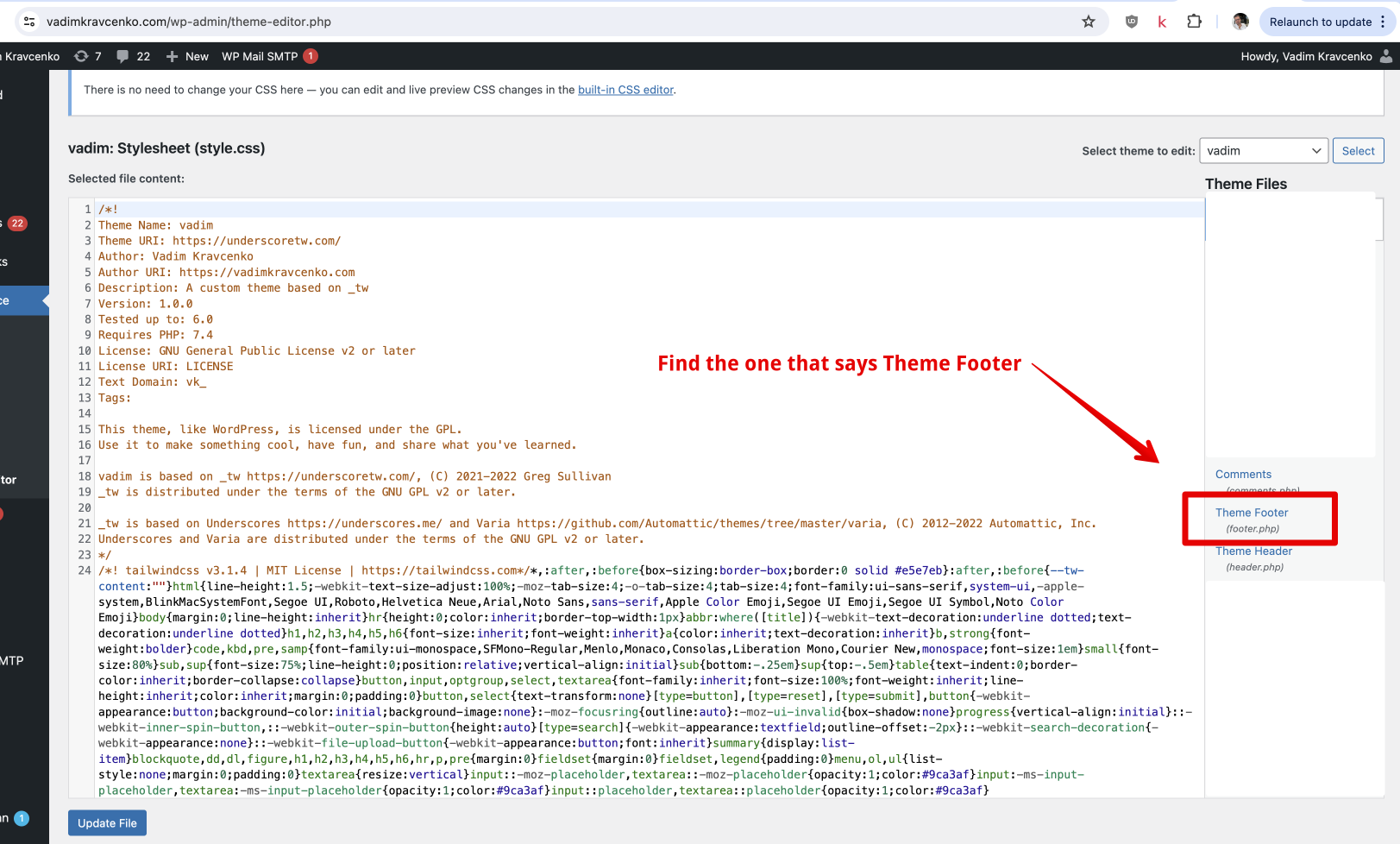
Step 3: Select footer.php on the right to edit the footer file
Step 4: Add the SEOJuice script at the bottom and click Update File
<script type="text/javascript" src="https://cdn.seojuice.io/suggestions.v1.js" defer></script><noscript><img src="https://smart.seojuice.io/pixel" width="1" height="1" alt="" style="display:none"></noscript>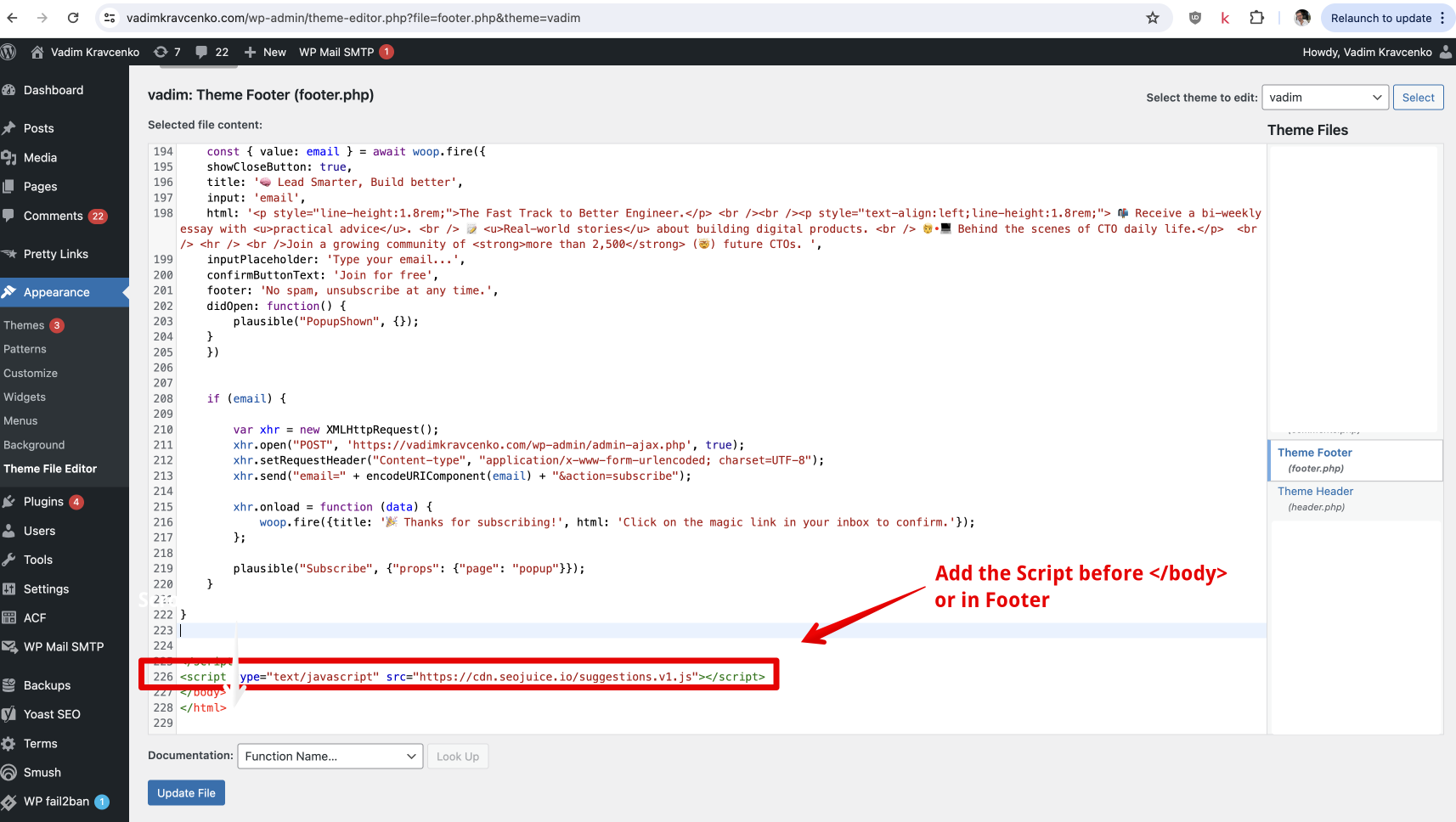
Step 5: You’re done!
If you need any help: hello@seojuice.io
Elementor (or similar) — Install via WPCode Plugin
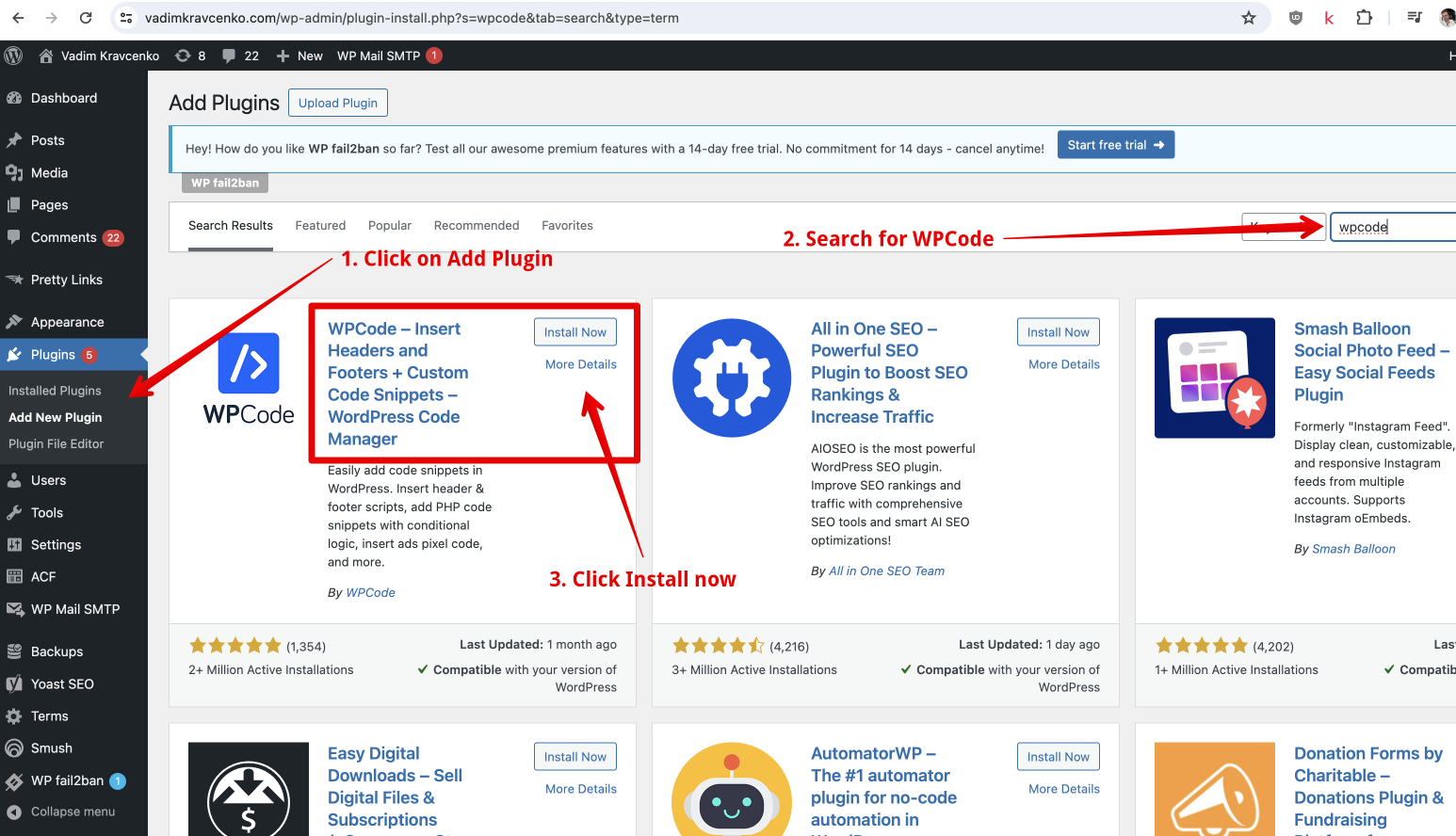
WPCode is a free plugin that allows you to add custom code and script tags to the header and footer area of your website. Install it via Plugins in the sidebar.
- First, install the plugin on your website.
- Then go to Code Snippets > Header & Footer.
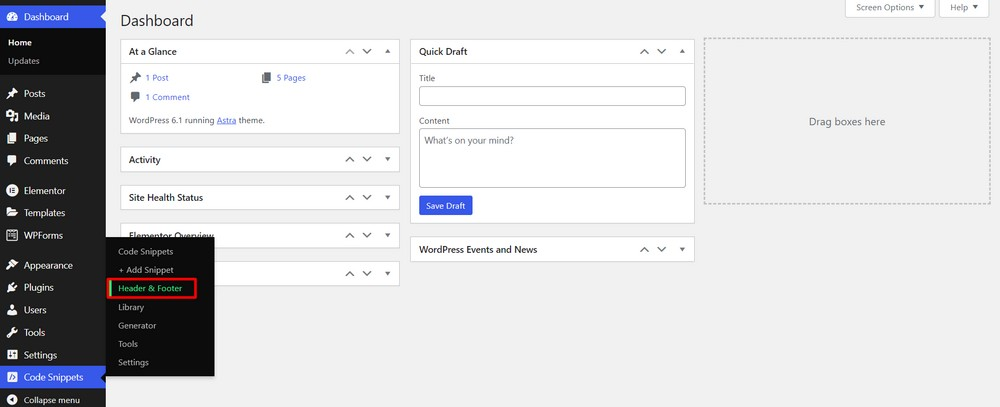
- Add the script tag to the footer section:
<script type="text/javascript" src="https://cdn.seojuice.io/suggestions.v1.js" defer></script><noscript><img src="https://smart.seojuice.io/pixel" width="1" height="1" alt="" style="display:none"></noscript>- Hit the Save Changes button.
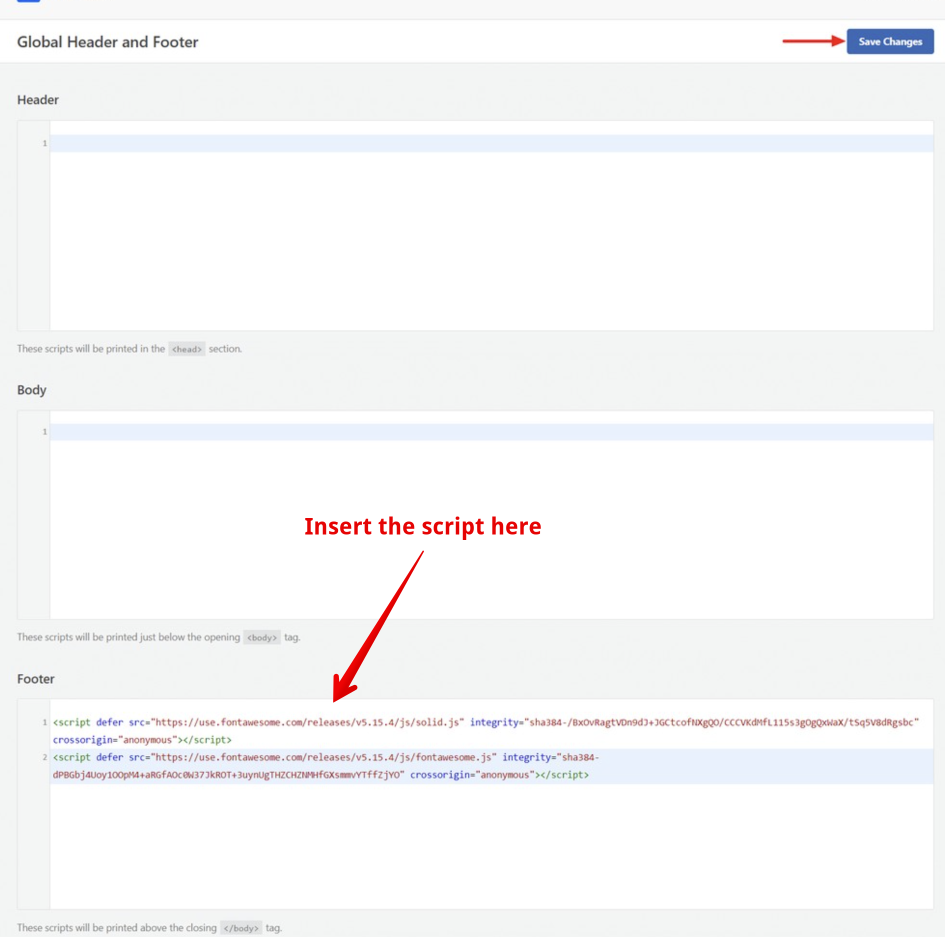
Done.
Verify Your Integration
After installing the plugin or script:
- Visit your site and open browser DevTools (F12)
- Go to the Network tab, reload, and filter for
seojuice - You should see a request to
cdn.seojuice.iowith a 200 status - In the SEOJuice dashboard, your site should show as connected
For detailed troubleshooting, see Integration Verification.